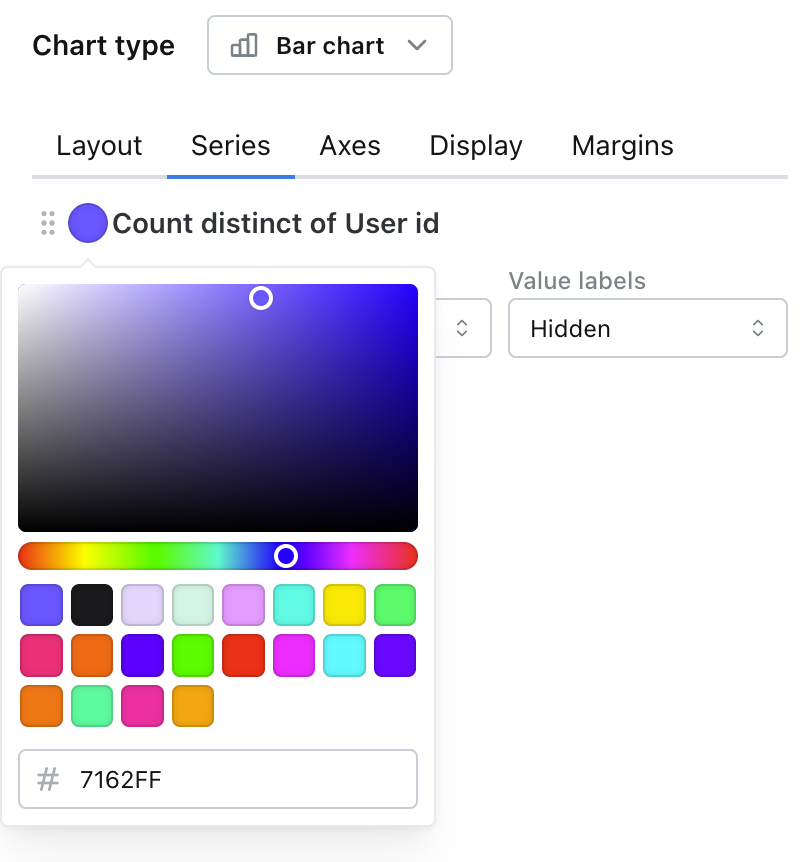
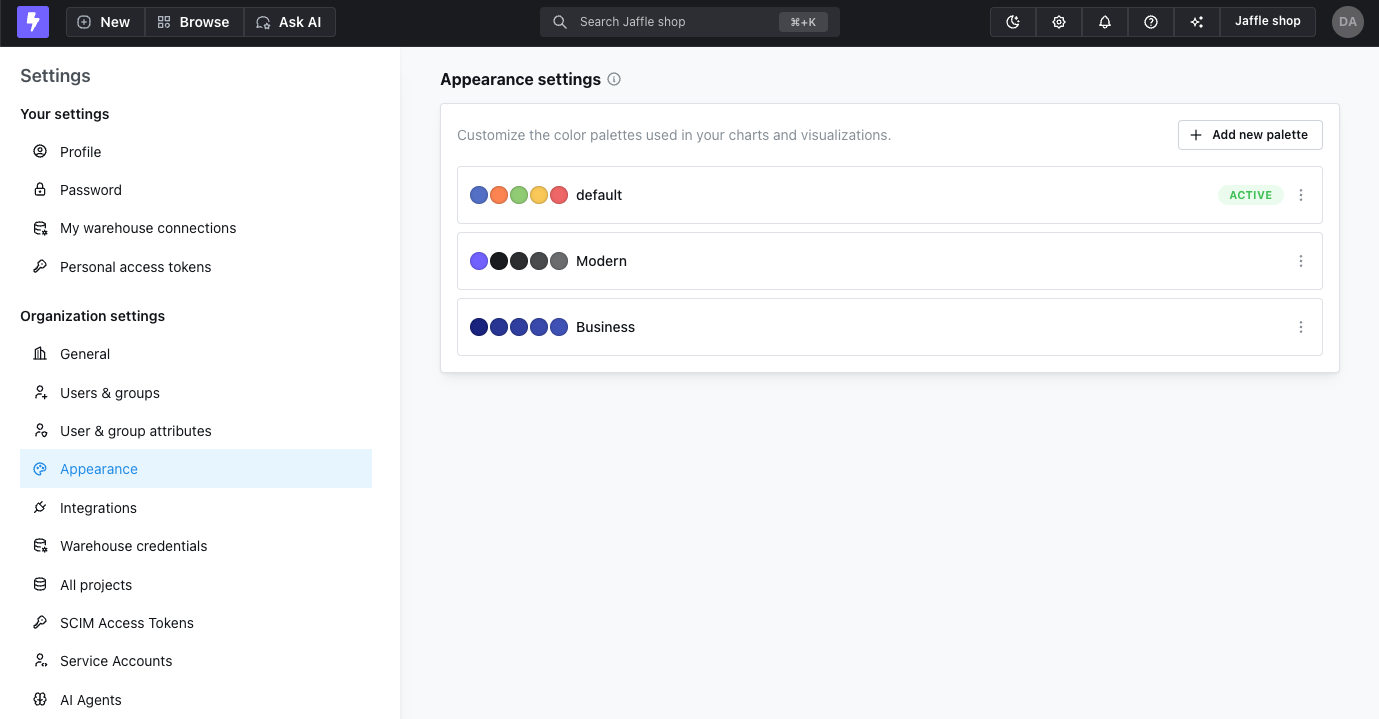
Organization settings —> Appearance and you can update any and all of your default colors used in your organization.
Viewing available palettes
You will see a list of color palettes that you can choose from for each mode. You can create your own palette by clicking on theAdd new palette button. Here you can preview the palette before you save it.
Color palettes for light and dark mode
You can configure different color palettes for light mode and dark mode to ensure optimal contrast and readability in each theme. The appearance configuration includes separate tabs for both light mode and dark mode, allowing you to customize color schemes for each theme independently.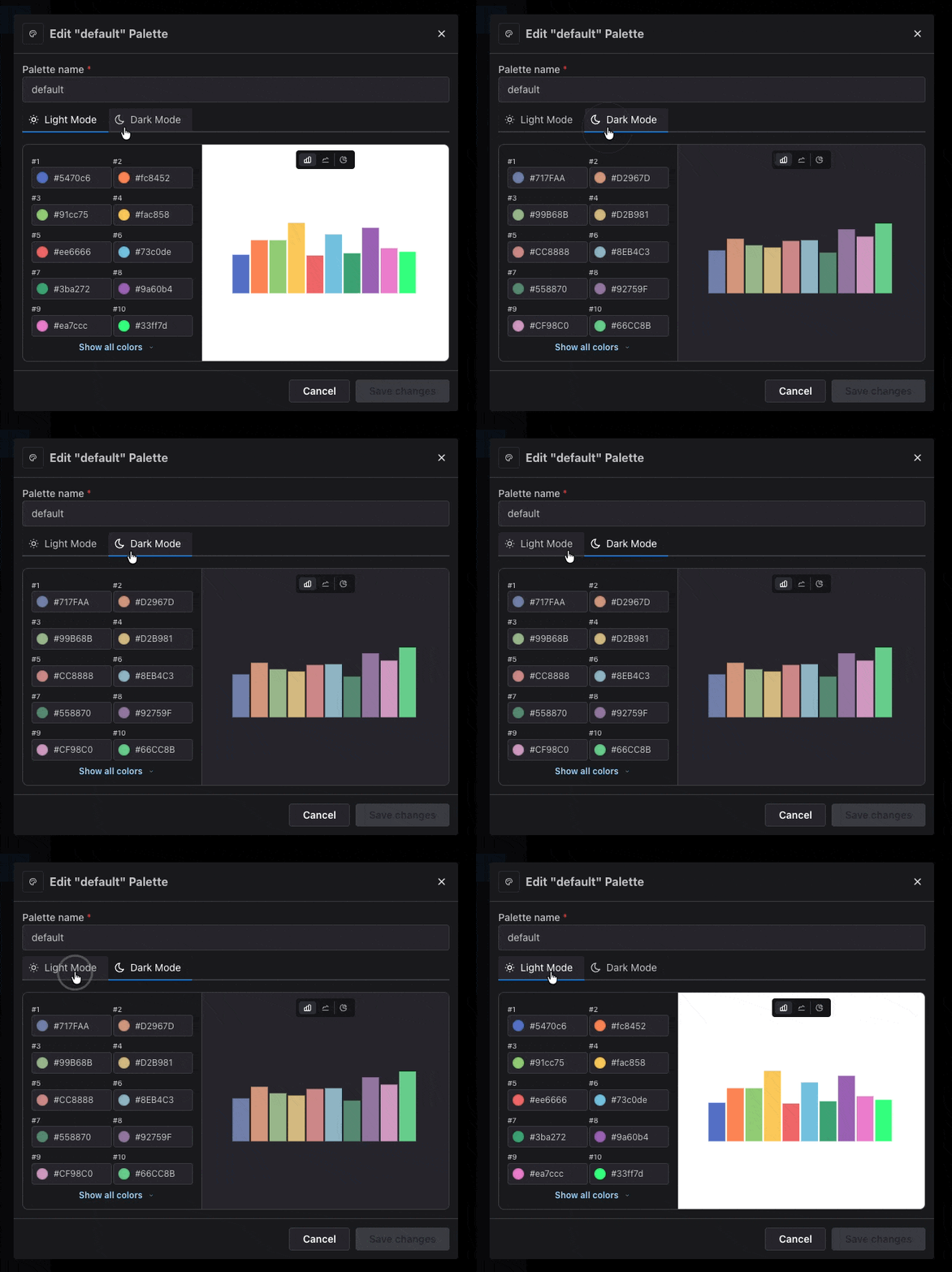
Set the palette as the default
Once you have created your palette, you can set it as the default palette for the current mode (light or dark) by clicking on theUse this theme button.
You can always come back to this page to change the default palette.

Use the palette in a chart
The next time you build a chart, it will default to using these colors for the series, unless you override them in the chart config.